
M100Z WIRELESS LASER MOUSE - Wireless Mouse SAITEK - Free user manual and instructions
Find the device manual for free M100Z WIRELESS LASER MOUSE SAITEK in PDF.


| Product Type | Wireless Laser Mouse |
| Brand | SAITEK |
| Model | M100Z WIRELESS LASER MOUSE |
| Detection Technology | Laser |
| Interface | Wireless (2.4 GHz RF) |
| Receiver | Nano USB Receiver |
| Power Supply | 2 AAA batteries (not included) |
| Battery Life | Automatic sleep mode |
| Range | Up to 10 meters (typical) |
| Compatible Operating Systems | Windows XP, XP64, Vista, Mac OS X |
| Buttons | Left button, right button, scroll wheel, connection button (under mouse) |
| Scroll Wheel | Scroll wheel with low battery LED indicator |
| Power Management | On/Off button under mouse (press and hold 3 seconds) |
| Installation | Plug & Play via Windows wizard |
| Maintenance | Clean with a soft, dry cloth. Avoid liquids. |
| Safety | Follow ergonomic guidelines: take regular breaks, maintain proper posture |
| Spare Parts | Standard AAA batteries, nano USB receiver (replacement not included) |
| Repairability | 2-year warranty. Contact SAITEK technical support or an authorized center. |
| Recycling | Do not dispose of with household waste. Follow WEEE regulations. |
| Standards | Class B, NMB-003 Canada, CE marking |
Frequently Asked Questions - M100Z WIRELESS LASER MOUSE SAITEK
User questions about M100Z WIRELESS LASER MOUSE SAITEK
0 question about this device. Answer the ones you know or ask your own.
Ask a new question about this device
Download the instructions for your Wireless Mouse in PDF format for free! Find your manual M100Z WIRELESS LASER MOUSE - SAITEK and take your electronic device back in hand. On this page are published all the documents necessary for the use of your device. M100Z WIRELESS LASER MOUSE by SAITEK.
USER MANUAL M100Z WIRELESS LASER MOUSE SAITEK
M100Z Wireless Laser Mouse
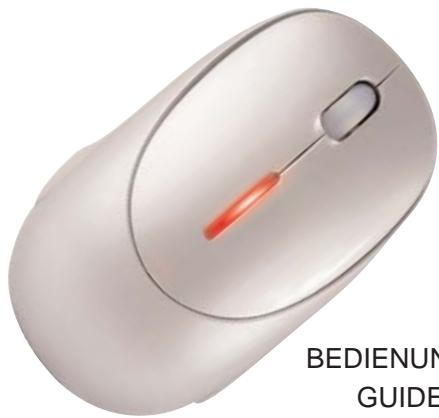
USER MANUAL
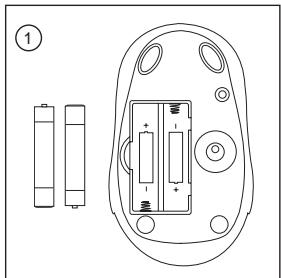
On the underside of the mouse, open the battery compartment, insert the batteries in the compartment in the direction shown and replace the cover.
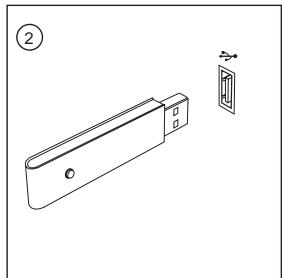
Insert the wireless receiver in one of your PC's USB ports. With your PC switched on, follow the device installation wizard to complete the installation of the new USB device.
Powering the mouse on/off
The mouse will switch itself on when you insert new batteries. It will enter sleep mode when not being used and can be woken simply by moving the mouse.
To switch the mouse off when not using for long periods, press and hold the button next to the battery compartment on the underside of the mouse for three seconds. To restart the mouse, press and hold the button for three seconds.
An LED behind the scroll wheel will flash to indicate low battery life. We suggest you replace the batteries when this happens.
Troubleshooting
If the mouse does not work:
1 Check the batteries have not expired and are inserted properly.
2 Make sure the mouse is switched on by pressing the button on the underside for three seconds.
3 Check the wireless receiver is properly inserted in one of your PC's USB ports.
4 Insert the wireless receiver in another of your PC's USB ports.
5 Press the button on the underside of the mouse once to re-establish the mouse's wireless connection with the receiver.
Important Information
Some experts believe that using any mouse or trackball may cause serious injury to hands, wrists, arms, neck, or back. If you feel pain, numbness, or weakness in these areas, please consult a qualified health professional immediately.
To reduce the risk of injury, please follow these precautions:
Take frequent breaks, get up and walk around several times every hour.
- Vary your tasks throughout the day.
- Keep your shoulders relaxed with your elbows at your side. Position your keyboard and mouse so you do not have to reach.
- Adjust your chair and keyboard so your upper arms and wrists are straight.
- Avoid resting your wrists on sharp edges.
Technical Support
Can't get started - don't worry, we're here to help you!
Nearly all the products that are returned to us as faulty are not faulty at all - they have just not been installed properly.
If you experience any difficulty with this product, please first visit our website www.saitek.com. The technical support area will provide you with all the information you need to get the most out of your product and should solve any problems you might have.
If you do not have access to the internet, or if the website cannot answer your question, please contact your local Saitek Technical Support Team. We aim to offer quick, comprehensive and thorough technical support to all our users so, before you call, please make sure you have all the relevant information at hand.
To find your local Saitek Technical Support Center, please see the separate Technical Support Center sheet that came packaged with this product.
Information for Customers in the United States
FCC Compliance and Advisory Statement
Warning: Changes or modifications to this unit not expressly approved by the
party responsible for compliance could void the user's authority to operate the equipment.
This device complies with Part 15 of the FCC Rules. Operation is subject to the following two conditions:
1 This device may not cause harmful interference, and;
2 This device must accept any interference received, including interference that may cause undesired operation.
NOTE: This equipment has been tested and found to comply with the limits for a Class B digital device, pursuant to Part 15 of the FCC Rules. These limits are designed to provide reasonable protection against harmful interference in a residential installation. This equipment generates, uses and can radiate radio frequency energy and, if not installed and used in accordance with the instructions, may cause harmful interference to radio communications. However, there is no guarantee that interference will not occur in a particular installation. If this equipment does cause harmful interference to radio or television reception, which can be determined by turning the equipment off and on, the user is encouraged to try to correct the interference by one or more of the following measures:
Reorient or relocate the receiving antenna;
- Increase the separation between the equipment and receiver;
- Connect the equipment into an outlet on a circuit different from that to which the receiver is connected;
- Consult the dealer or an experienced radio/TV technician for help.
Saitek Industries, 2295 Jefferson Street, Torrance, CA 90501, USA
Canada ICES-003
Operation is subject to the following two conditions:
1 This device may not cause interference, and;
2 This device must accept any interference, including interference that may cause undesired operation of the device.
This Class B digital apparatus complies with Canadian ICES-003.
- 2 AAA rechargeable batteries (included)
- Must be disposed of properly
- May explode if damaged or disposed of in fire
- Do not short circuit
Importer's Declaration of Conformity
Authorised representatives address:
Saitek plc
4 West Point Row
Great Park Road
Almondsbury
Bristol
United Kingdom BS32 4QG
Identification of Equipment:
Rechargeable Wireless Notebook Mouse
Intended usage:
For home use
Conformity specification:
Reference to European harmonised standards
EN60950-1:2002
EN 300 220-3:2000
EN 301 489-3:2002
Technical Construction File Ref.: PCID/PM56
The above equipment conforms to the essential requirements of the following directive:
1999/5/EC EC Radio and Telecom Terminal Equipment directive
The essential requirements the above equipment conforms to are:
Article 3.1a (Safety)
Article 3.1b (EMC)
Article 3.2 (Use of radio spectrum)
Limitations of frequency usage:
Countries in which this product may not be sold/used:
Signed: Andrew Young

1313
Position: Engineering Director
Date: 1 August 2008
Company: Saitek plc
Place: United Kingdom
Conditions of Warranty
1 Warranty period is 2 years from date of purchase with proof of purchase submitted.
2 Operating instructions must be followed.
3 Specifically excludes any damages associated with leakage of batteries. Note: Batteries can leak when left unused in a product for a period of time so it is advisable to inspect batteries regularly.
4 Product must not have been damaged as a result of defacement, misuse, abuse, neglect, accident, destruction or alteration of the serial number, improper electrical voltages or currents, repair, alteration or maintenance by any person or party other than our own service facility or an authorized service center, use or installation of non-Saitek replacement parts in the product or the modification of this product in any way, or the incorporation of this product into any other products, or damage to the product caused by accident, fire, floods, lightning, or acts of God, or any use violative of instructions furnished by Saitek plc.
5 Obligations of Saitek shall be limited to repair or replacement with the same or similar unit, at our option. To obtain repairs under this warranty, present the product and proof of purchase (eg, bill or invoice) to the authorized Saitek Technical Support Center (listed on the separate sheet packaged with this product) transportation charges prepaid. Any requirements that conflict with any state or Federal laws, rules and/or obligations shall not be enforceable in that particular territory and Saitek will adhere to those laws, rules, and/or obligations.
6 When returning the product for repair, please pack it very carefully, preferably using the original packaging materials. Please also include an explanatory note.
7 IMPORTANT: To save yourself unnecessary cost and inconvenience, please check carefully that you have read and followed the instructions in this manual.
This warranty is in lieu of all other expressed warranties, obligations or liabilities. ANY IMPLIED WARRANTY, OBLIGATIONS, OR LIABILITIES,
INCLUDING BUT NOT LIMITED TO THE IMPLIED WARRANTYES OF MERCHANTABILITY AND FITNESS FOR A PARTICULAR PURPOSE, SHALL BE LIMITED IN DURATION TO THE DURATION OF THIS WRITTEN LIMITED WARRANTY. Some states do not allow limitations on how long an implied warranty lasts, so the above limitations may not apply to you. IN NO EVENT SHALL WE BE LIABLE FOR ANY SPECIAL OR CONSEQUENTIAL DAMAGES FOR BREACH OF THIS OR ANY OTHER WARRANTY, EXPRESS OR IMPLIED, WHATSOEVER. Some states do not allow the exclusion or limitation of special, incidental or consequential damages, so the above limitation may not apply to you. This warranty gives you specific legal rights, and you may also have other rights which vary from state to state.

This symbol on the product or in the instructions means that your electrical and electronic equipment should be disposed at the end of its life separately from your household waste. There are separate collection systems for recycling in the EU.

For more information, please contact the local authority or your retailer where you purchased the product.
M100Z WIRELESS LASER MOUSE
Systemkompatilität
PnB KJIIOUeHOM KOMMbIOTpe, BCTaBbTE USB pa3bem yCtpoiCTBa OJHO n3 USB rHe3d BaWero PIK.
CneyTe yka3aHm yctAHOBKn, UTo 6bI 3abepnTb npKJIouHe HOBOr USB yctpoCTBa.
TK Uyumlu Sistem
Windows 2000/XP/XP64/Vista/Mac OS X ortaminda calisan bilgisayarlar.
Mouse'unuz Baglanmasi
M100Z Wireless Laser Mouse
www.saitek.com
© 2008 Saitek Ltd. Made and printed in China.
All trademarks are the property of their respective owners.
V.1.0 01/08/08
PM55

- M100Z Wireless Laser Mouse
- Powering the mouse on/off
- Troubleshooting
- Important Information
- Technical Support
- Information for Customers in the United States
- FCC Compliance and Advisory Statement
- Canada ICES-003
- Importer's Declaration of Conformity
- Identification of Equipment:
- Conditions of Warranty
- Systemkompatilität
- www.saitek.com
Brand : SAITEK
Model : M100Z WIRELESS LASER MOUSE
Category : Wireless Mouse